🚀 Quick Start: Installation & First Setup
Welcome to V-Train! This guide will help you set up the extension in just a few minutes. Soon, you will see progress bars on your favorite video sites.
💡 What is V-Train?
V-Train is a Chrome extension. It automatically shows a red progress bar under video thumbnails. This helps you track what you have watched, just like YouTube! It runs 100% locally and does not upload your data.
1. How to Install
✅ Method A: Install from Chrome Web Store (Recommended)
This is the easiest and safest way for most users.
Click the link below to open the Chrome Web Store:
Click the blue "Add to Chrome" button in the top right corner.
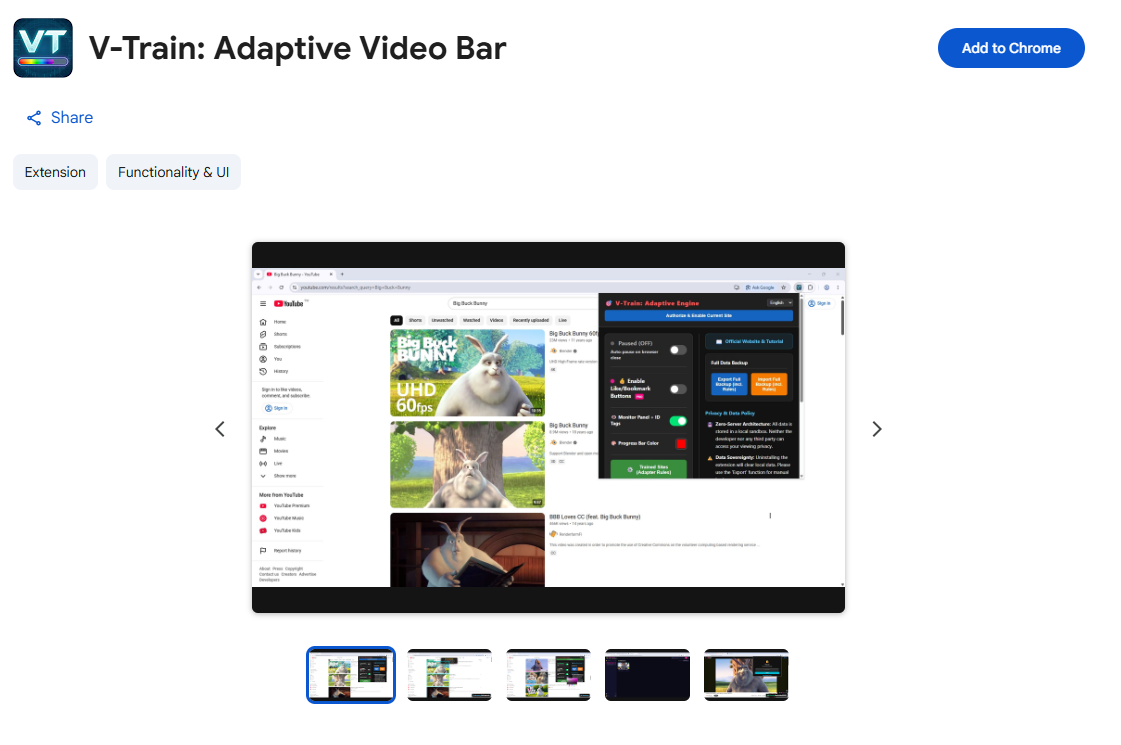
A confirmation window will appear. Click "Add extension".
After it finishes, the V-Train icon (a dark VT logo) will appear in the top right corner of Chrome.
🎉 Check if Installation is Successful
If you see the VT icon in the top right, the installation was successful! If you do not see it, please read the "Pin the Extension" step below.
🔧 Method B: Manual Installation (Developer Mode)
If you downloaded the source code from GitHub, you can load it manually using Developer Mode.
⚠️ Note
This method is for advanced users. Please be careful with extensions from unknown sources.
Download and extract the V-Train source code to a folder on your computer.
Type
chrome://extensionsin the Chrome address bar and press Enter.Turn on the "Developer mode" switch in the top right corner.
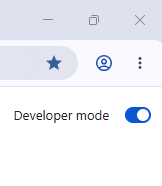
Click the "Load unpacked" button in the top left.
Select the V-Train folder you just extracted (it must contain the
manifest.jsonfile).Click "Select Folder". V-Train will now appear in your list of extensions!
📌 Developer Mode Tip
If you install via Developer Mode, Chrome might show a "Disable developer mode extensions" popup when you restart the browser. Just click "Cancel" to keep using V-Train.
2. Pin the Extension
Chrome hides new extensions by default. You should "pin" V-Train so you can easily access it.
Click the puzzle piece icon 🧩 (Extensions button) in the top right corner of Chrome.

Find V-Train Adaptive Video in the list.
Click the pushpin icon 📌 next to it. It will turn blue.
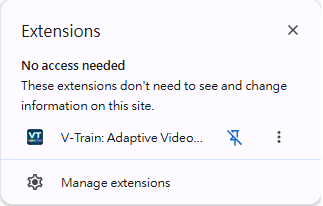
Done! The VT icon will now stay on your toolbar.
Quick Tip
If you use Microsoft Edge, the steps are the same. Just look for the puzzle piece icon on your toolbar!
3. First Launch: Open the Dashboard
After pinning, you are ready to use V-Train!
Click the VT icon on the toolbar.
The dark-themed Dashboard will open.
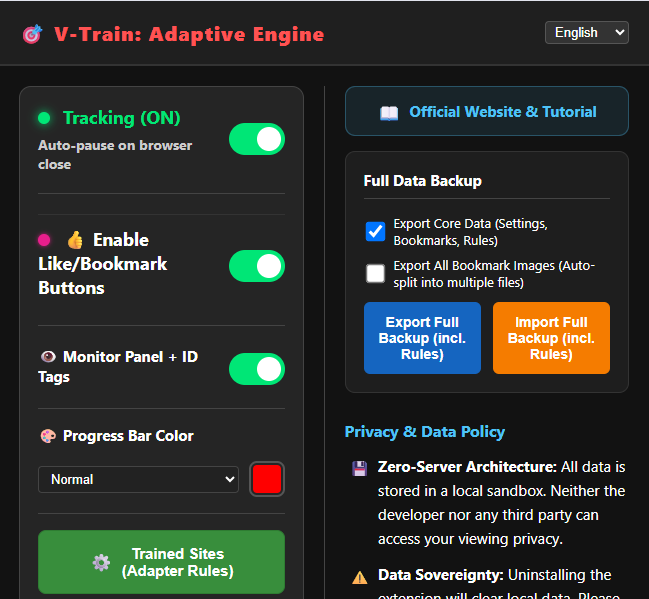
This Dashboard is the "Command Center". You can control all settings from here.
4. Authorize Site: The Most Important Step
V-Train requires your permission to work on a website. This protects your privacy. V-Train will not run on any website unless you explicitly allow it.
You must do this once for each website where you want to use V-Train.
Steps:
Open the video website you want to track (for example, the homepage or video list page).
Click the VT icon on the toolbar to open the V-Train Dashboard.
Click the blue "Authorize & Enable Current Site" button at the top of the panel.

Chrome will ask you to confirm: "Allow this extension to read and change data on this site?". Click "Allow".
The button will turn green and say "✅ Site Authorized".

If V-Train already supports this website, refresh the page. You will see red progress bars under the video thumbnails!
⚠️ Still no progress bars? Do not worry!
If you see "Site Authorized" but still do not see progress bars, this is normal. It means V-Train does not know how to read this website yet. You must use the "Adaptive Engine" to train it. Please read the Adaptive Engine Training Guide.
5. About the Default "Monitoring Off" Mode
After you install V-Train and authorize a website, you might still not see progress bars.
This is because V-Train is set to "Monitoring Off" mode by default after installation.
What is Monitoring Off Mode?
Sometimes you may want to watch a video without recording your progress. When "Monitoring Off" is active, V-Train acts as if it is turned off. It will not show progress bars, and it will not record what you watch.
We default to Monitoring Off so you can explore the Dashboard first before V-Train starts recording your activity.
How to turn on "Monitoring" to start tracking
Open the V-Train Dashboard.
Look at the "Status Toggle" at the top. It currently shows a gray light for "Monitoring Off".
Click this toggle to turn it green. It will say "🟢 Monitoring".
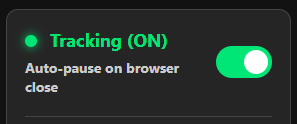
When the toggle is green, V-Train is active! Refresh the page, and the progress bars will appear.
💡 Want to pause anytime?
You can switch modes anytime! If you do not want V-Train to record, turn the switch to "Monitoring Off". When you want to record again, switch back to "Monitoring".
6. Incognito Mode Setup
V-Train supports incognito mode, but you must enable it manually.
⚠️ Disabled by default
For security, Chrome does not allow extensions to run in incognito mode by default. You must grant permission manually.
How to allow V-Train in Incognito mode
Type
chrome://extensionsin the Chrome address bar and press Enter.Find V-Train Adaptive Video and click "Details".
Scroll down and find the "Allow in Incognito" option.
Turn on the switch.
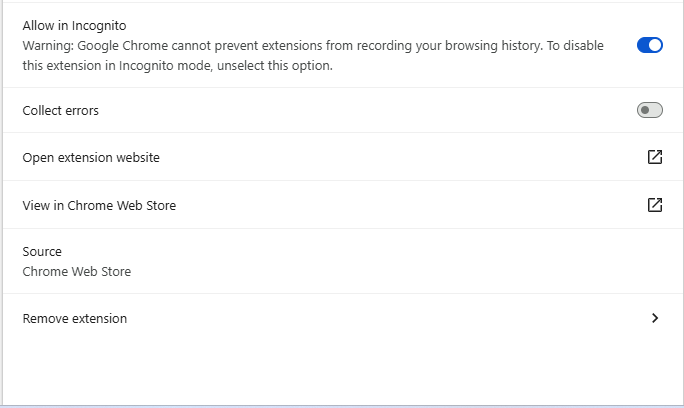
Now, V-Train will work normally in incognito windows!
📌 Privacy in Incognito Mode
Even if you enable V-Train in incognito mode, you can still switch to "Monitoring Off" from the Dashboard. This stops V-Train from recording your progress.
7. Common Installation Q&A
❓ Q: I cannot find the V-Train icon after installing. What should I do?
Please read step "2. Pin the Extension" on this page. Click the puzzle piece icon on your Chrome toolbar and pin V-Train manually.
❓ Q: Why didn't Chrome show a popup when I clicked authorize?
You might be on a system page (like chrome://...) or a local file (like file://...). V-Train can only be authorized on normal websites starting with http:// or https://. Please go to a video website first, then click authorize.
❓ Q: I authorized the site, but there are still no progress bars. Why?
Please check these steps:
- ✅ Confirm the status toggle on the Dashboard says "🟢 Monitoring", not "Monitoring Off".
- ✅ Confirm the authorize button is green and says "Site Authorized".
- ✅ Refresh the webpage.
- If you checked all steps and still see no progress bars, V-Train probably does not support this site yet. You can use the Adaptive Engine to train it, or check the Community Rules Library to see if someone else has already trained it.
❓ Q: The Dashboard is in Chinese. How do I change it to English?
There is a Language menu at the top right of the Dashboard. Click it and select "English". The language will change immediately.
❓ Q: Can I use this extension on Microsoft Edge?
Yes! Microsoft Edge supports Chrome extensions. You can install V-Train from the Chrome Web Store using Edge. The steps are exactly the same as in Chrome.
🚫 Unsupported Browsers
V-Train only supports Chromium-based browsers (like Chrome, Edge, and Brave). Firefox and Safari are not supported.
8. Next Steps...
Congratulations on setting up V-Train! 🎉 To learn more about its features, please read:
- Dashboard Overview → — Learn what every button does.
- Adaptive Engine: Train New Sites → — Teach V-Train to support any video website.
- Pro Features Guide → — Unlock infinite records and the Bookmark Vault.