🧠 Adaptive Engine
Teach V-Train how to find video thumbnails on any website!
1. What is the Adaptive Engine?
V-Train supports popular video websites automatically. But there are many other video websites on the internet. V-Train cannot know all of them.
The Adaptive Engine lets YOU create the rules for these websites:
- 🖱️ Right-click on a video thumbnail.
- 🔲 Use a box to select the thumbnail.
- 🔗 Paste a video link and click the Video ID.
- 💾 Save the rule. V-Train will now work on this website!
You do not need to write any code. It only takes about 30 seconds to 2 minutes.
💡 Example
Imagine V-Train is a new worker. V-Train does not know what this website looks like. You must show V-Train where the video thumbnails are. Train it once, and V-Train will remember forever.
2. Important: Switch to "Monitoring" Mode First
⚠️ You must use Monitoring Mode
The Adaptive Engine does not work in "Monitoring Off" mode.
If you use "Monitoring Off" and click "Start Training Engine", you will see a red error message.
Please open the V-Train Dashboard → Turn on "Monitoring" → Try again.
Why? "Monitoring Off" mode stops V-Train from adding things to the screen. V-Train needs to add a selection box to the screen for training.
3. Training Steps 🗺️
There are six steps to train V-Train:
Step 1: Right-click to start training
Right-click on ANY video thumbnail. Click this option in the menu:
V-Train: Start Training Engine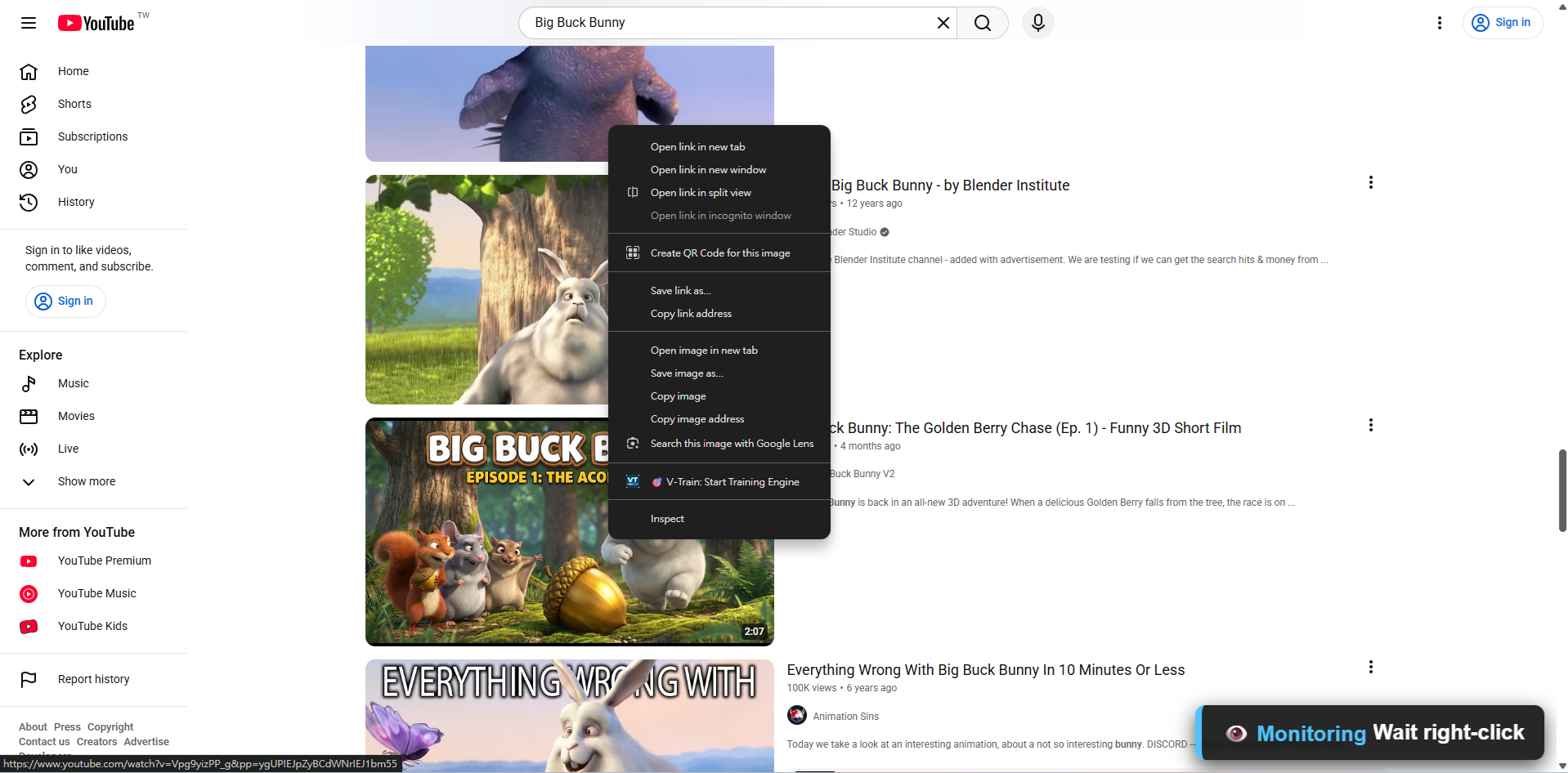
Quick Tip
You can right-click anywhere on the video picture. It does not need to be perfect. You can adjust it later.
Step 2: The selection box appears
The page is now in "Training Mode":
- Old V-Train progress bars become clear.
- A colored box appears where you right-clicked.
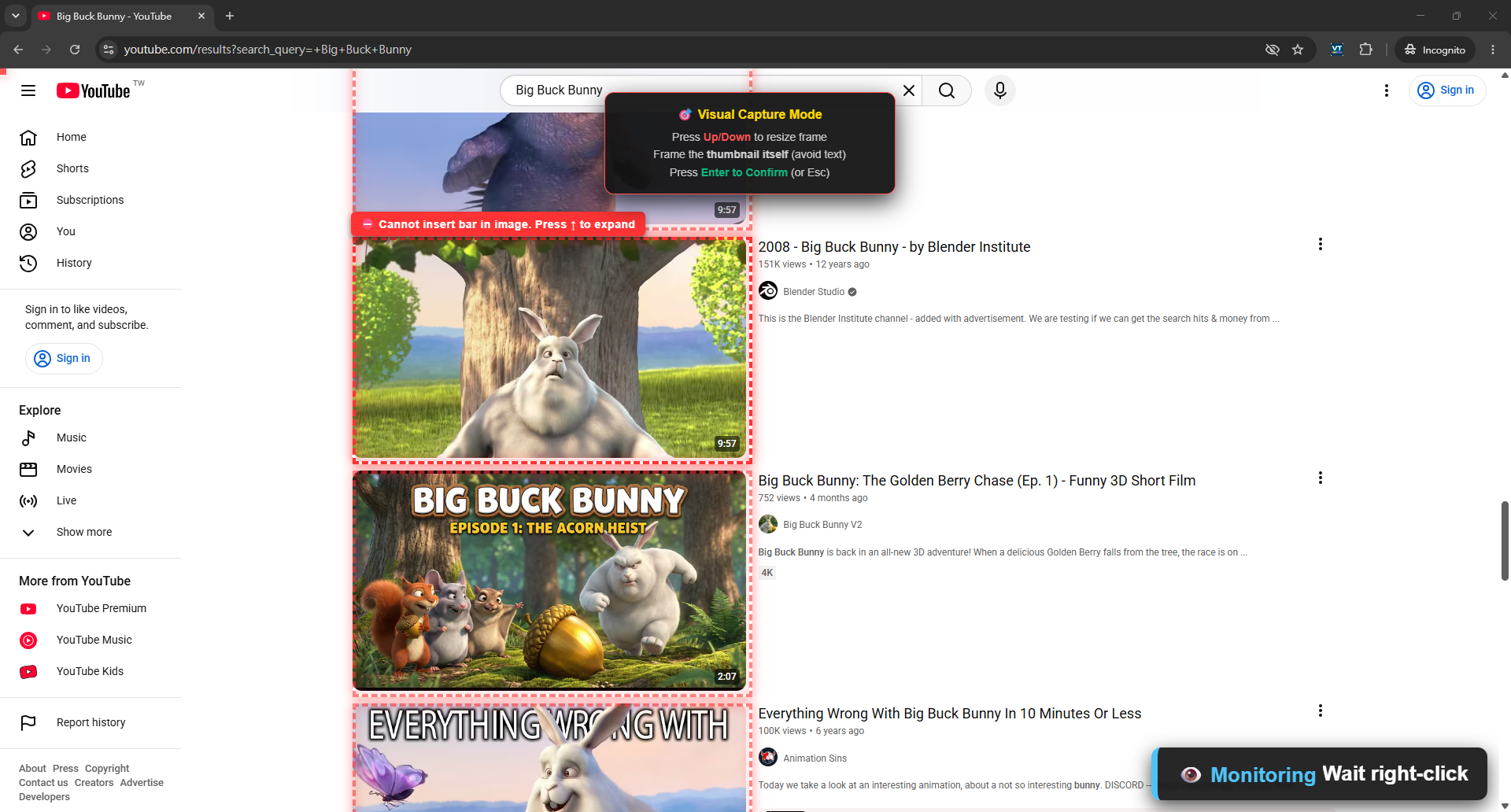
Step 3: Use the keyboard to adjust the box
The color of the box shows if the selection is correct:
| Color | Meaning |
|---|---|
| 🔵 Cyan (Blue) | ✅ Good target. You can press Enter. |
| 🔴 Red | ❌ Bad target. You need to adjust it. |
A label is in the top right corner of the box:
- Green background with VALID → You can press Enter.
- Red background with an error message → You must move the box.
Use the keyboard to move the box:
↑Move up (Makes the box larger)↓Move down (Makes the box smaller)
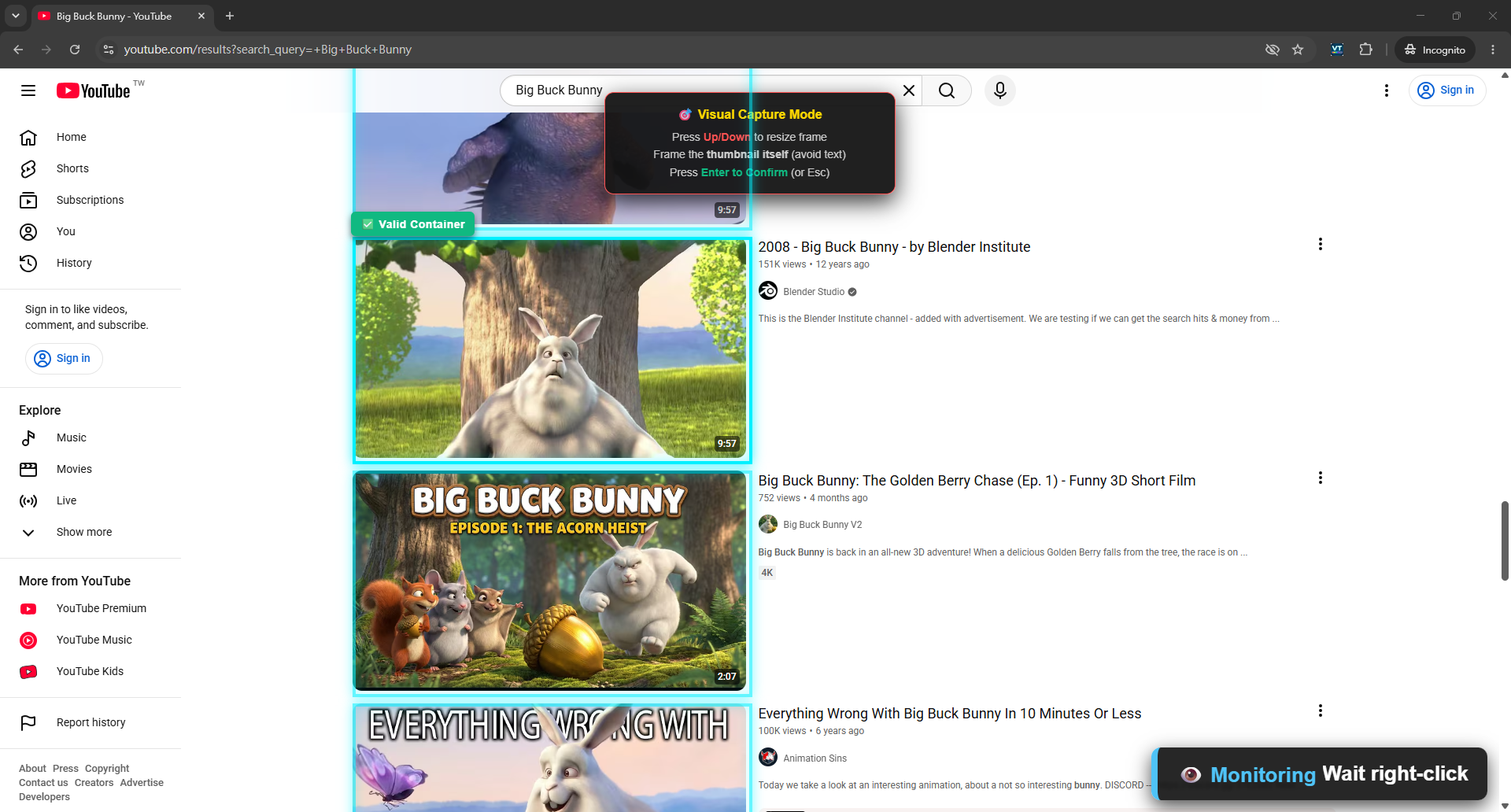
Step 4: Press Enter to confirm
When the box is cyan and says VALID, press Enter.
The system will create a rule to find all similar thumbnails on the page.
Step 5: Select the Video ID
A panel will appear on the screen:
- Paste a full video link into the top box. (Copy it from your browser address bar).
- The system splits the link into parts.
- Click the part that is the "Video ID".
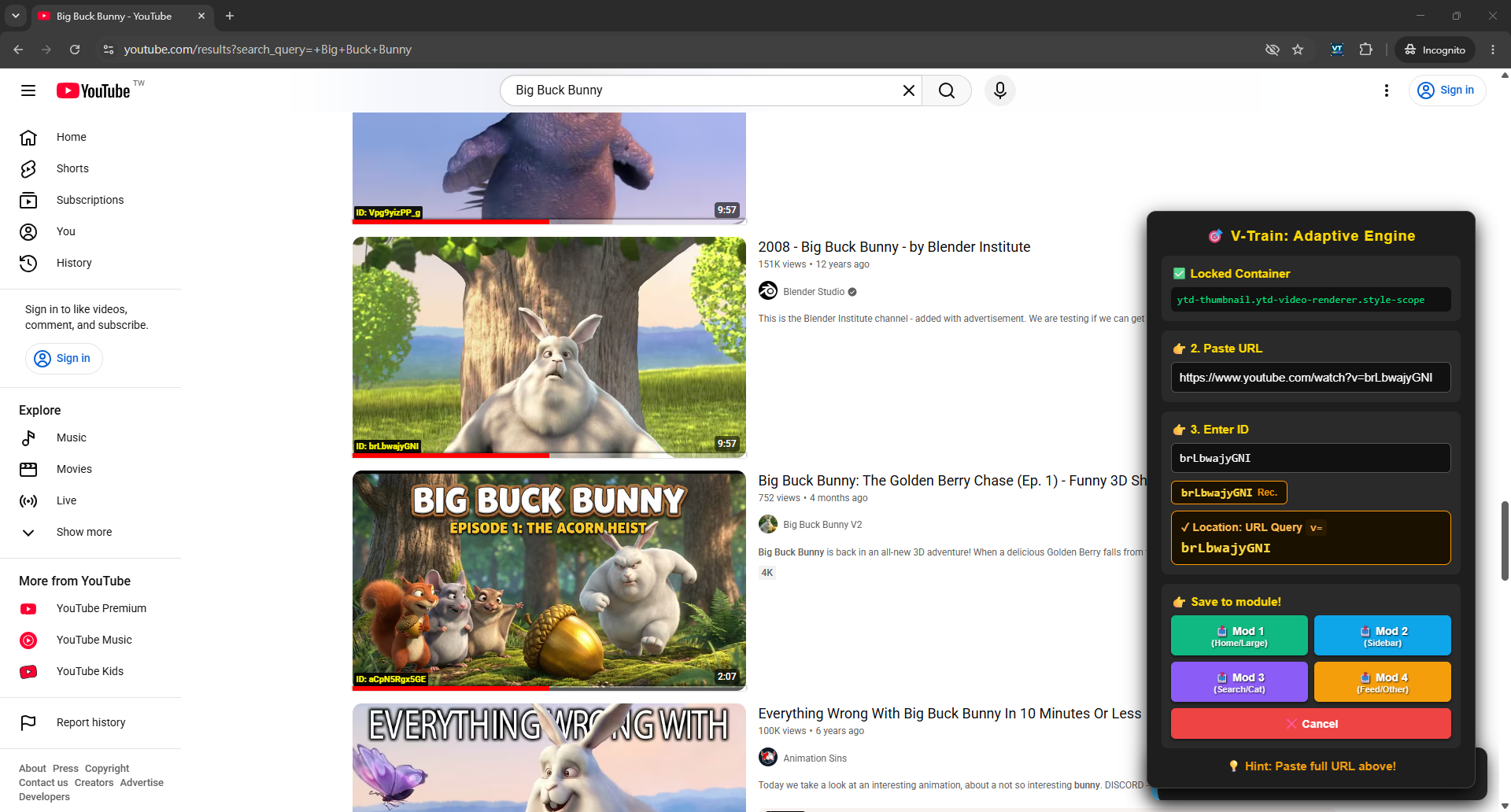
Use the correct link
You must paste the link for the video you just right-clicked. If you right-clicked Video A, you must paste the link for Video A.
Step 6: Choose a slot and save
Click the ID part. Then, choose a Save Slot (Mod 1 to Mod 4) and click Save.
Training is finished! Refresh the page. V-Train will now work on this website.
4. Why is the Box Red? 🎨
✅ Cyan (VALID)
A cyan box is good. You can press Enter.
❌ Reasons for a Red Box (INVALID)
| Reason | Explanation | How to Fix |
|---|---|---|
Selected <img> or <picture> | You selected the picture itself. | Press ↑ to make the box larger. |
Selected <video> | You selected the video player. | Press ↑ to make the box larger. |
Selected <svg> or <canvas> | You selected a graphic. | Press ↑ to make the box larger. |
| Element too small | You selected a small icon. | Press ↑ to make the box larger. |
| Element already tracked | V-Train already knows this rule. | You do not need to train it. |
Most common mistake
Many people right-click the picture, and the box stays red. Remember: you must select the box that holds the picture, not the picture itself. Just press ↑ one or two times.
5. Keyboard Shortcuts ⌨️
| Key | Function |
|---|---|
↑ Up Arrow | Make the box larger (Select Parent) |
↓ Down Arrow | Make the box smaller (Select Child) |
Enter | Confirm selection |
Esc | Cancel training |
6. How to Select the Video ID 🔗
Links can look very different. V-Train supports four types of IDs:
📁 Path Type
Link looks like this: https://example.com/video/abc123/play
The ID is a part of the path. V-Train remembers which part you click.
Example:
https://www.mysite.com/watch/Xk9mP2q/
                              ↑
                        Click this part
🔍 Query Parameter Type
Link looks like this: https://example.com/watch?v=dQw4w9WgXcW&t=30
The ID is after the ?.
Example:
https://www.youtube.com/watch?v=dQw4w9WgXcW
                                 ↑
                           Click this entire part
#️⃣ Hash Type
Link looks like this: https://example.com/videos#ep-42
The ID is after the #.
✂️ Separator Type
Sometimes the ID is mixed with other words.
https://example.com/v/channel_abc123_hd
                               ↑
                    "abc123" is the real ID
Select the whole part. Then, tell V-Train how to find the ID inside it.
INFO
If the link is very difficult, check the Community Rules Library. Someone else might have made the rule for you!
7. Using the Four Save Slots (Mod 1 ~ Mod 4) 💾
Every website has 4 save slots. Why?
Because thumbnails look different on different pages:
| Save Slot | Use For |
|---|---|
| Mod 1 | Homepage thumbnails |
| Mod 2 | Search page thumbnails |
| Mod 3 | User Profile page thumbnails |
| Mod 4 | Related video thumbnails |
Example
A website might have large pictures on the homepage and small pictures on the search page. You must train V-Train twice and save them in different slots.
WARNING
If a slot already has a rule, saving will overwrite it. You cannot undo this. You can copy the old rule first to keep it safe.
8. Sharing Rules (SYNC) 📋
Every rule has a serial number. It looks like this:
SYNC-Z... (followed by a long string)You can copy this text and share it with friends!
How to get your rule serial:
Open the V-Train Dashboard → Click "Trained Sites (Rules)" → Find the website → Click "Share".
9. Community Rules Library 🌐
You do not have to train every website yourself. We have a Community Rules Library:
You can:
- 📥 Download rules: Find a website and copy the rule serial.
- 📤 Share rules: Share your rules to help other people.
- ⭐ Report problems: Tell people if a rule stops working.
10. Training FAQ ❓
Q: I right-clicked, but "Start Training Engine" is not there?
- Check if V-Train is turned on in Chrome (
chrome://extensions). - Make sure you are on a real website (like
https://...). - Refresh the page.
- Make sure V-Train is in "Monitoring" mode.
Q: I saved the rule, but V-Train still does not work?
- You selected the wrong box: The rule is bad. Try training again and press
↑or↓to select a different box. - The website loads slowly: Wait for the page to finish loading completely.
Q: The box is always red. Pressing ↑ does not work?
Refresh the page. Right-click on a different part of the picture.
Q: Do my rules sync to my other computer?
No. Rules are saved only on this computer. You must copy the rule serials and send them to your other computer.
Q: How long does a rule take to work?
It works immediately. Just refresh the page.