🎛️ Dashboard Overview
The V-Train Dashboard is the main control center. It is like an airplane's cockpit where you find all the buttons and switches! This page explains what each part does.
📋 How to open the Dashboard?
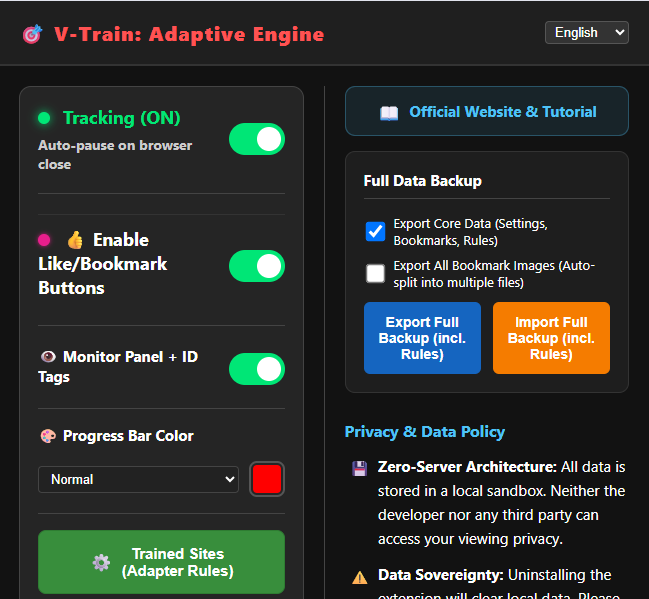
Click the VT icon on your Chrome toolbar. If you have a passcode, you must enter it first.
1. Dashboard Layout
From top to bottom, the dashboard has these main areas:
| Area | Function |
|---|---|
| 🔴 Status Area | Switch between Monitoring / Monitoring Off |
| ⚙️ Settings | Hover Panel, Monitor Panel, Progress Bar Color, Language |
| 🌐 Authorize | Authorize the current website |
| 📊 Statistics | Number of recorded videos |
| 🗂️ Quick Actions | Rules, Bookmark Vault, Backup, Unlock Pro |
| 🔒 Privacy | Passcode, Clear Data |
2. Status Area: Monitoring / Monitoring Off
This is the most important switch. It controls if V-Train is "working".
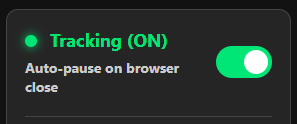
Monitoring
- Switch is ON → Green light, text says "Monitoring"
- V-Train is tracking the videos you watch.
- Progress bars appear under video thumbnails.
Monitoring Off
- Switch is OFF → Gray light, text says "Monitoring Off"
- V-Train is sleeping. It will not record or show progress bars.
- It leaves no trace of what you watch.
💡 When should I use Monitoring Off?
Use Monitoring Off when you watch videos you do not want to record. You can switch modes at any time.
⚠️ Monitoring Off is default for new users
When you first install V-Train, Monitoring Off is turned on by default. If you do not see progress bars, please make sure the switch is set to "Monitoring".
3. Settings Area
🖱️ Hover Panel (Show Interaction)
This controls the "Floating Panel" on the video playback screen.
This small panel lets you:
- 👍 Like / 👎 Dislike — Rate the video quickly.
- ❤️ Bookmark — Save the video to your Bookmark Vault.
- 📸 Snapshot Cover — Take a picture of the video to use as a cover.
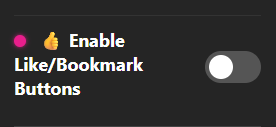
If you do not like this panel, you can turn it off here.
Free vs Pro Version
Free users can use all buttons on the Hover Panel. Free users can save up to 100 bookmarks. Upgrading to Pro gives you unlimited bookmarks.
🖥️ Monitor Panel
This is a tool to help fix problems. If you turn it on, a small black window appears in the bottom left corner of your screen. It shows what V-Train is doing:
- Is it recording?
- What is the Video ID?
- What is the current progress (%)?
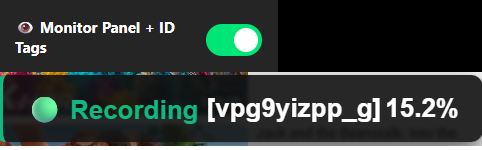
Normal users do not need to turn this on. It is useful if progress bars are not working properly.
💡 When is it useful?
When you train a new website, the rules might not work. Turn on the monitor panel to see what ID the system finds. This helps you fix mistakes!
🎨 Progress Bar Color
Do you want to change the default red progress bar? You can set exclusive colors for three different video rating states: "Normal", "Like (👍)", and "Dislike (😤)"!
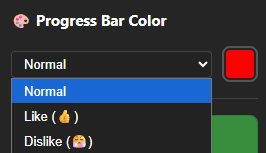
- Use the dropdown menu to select a state, and click the color square on the right to pick your favorite color.
- Progress bars on all trained websites will instantly change to the corresponding color based on your rating for that video.
- If you don't set specific colors for "Like" or "Dislike", the system will automatically use the "Normal" color.
- To switch back to default red, type
#ff0000in the color picker.
🌐 Language Select
Use the menu at the top right to change the language.
| Option | Language |
|---|---|
zh-TW | Traditional Chinese |
en | English |
The text changes immediately. You do not need to refresh the page.
Multi-language Support
The extension supports multiple languages. We will add more languages to the manual soon.
4. Authorize Current Site Button

This blue button is at the very top of the dashboard. If you visit a website that is not authorized, the button says:
🔓 Authorize & Enable Current SiteClick it. Chrome will ask for permission. Click Allow. The button will turn green and say:
✅ Site Authorized📌 V-Train's Authorization System
V-Train uses Chrome's Optional Permissions. It only works on websites you allow. It cannot read data from other websites. Your privacy is safe.
5. Statistics: Video Record Count
The middle of the dashboard shows how many video progress records V-Train has saved.
- Free Version: Shows
{Count} / 200(Maximum 200 records) - Pro Version: Shows
{Count} / ∞ PRO(Unlimited, gold text)
For free users, the number turns red when you get close to 200. When you reach 200, new records will delete the oldest records.
6. Trained Sites Management (Rules Panel)
Click the "Trained Sites (Rules)" button to open the rules management panel.
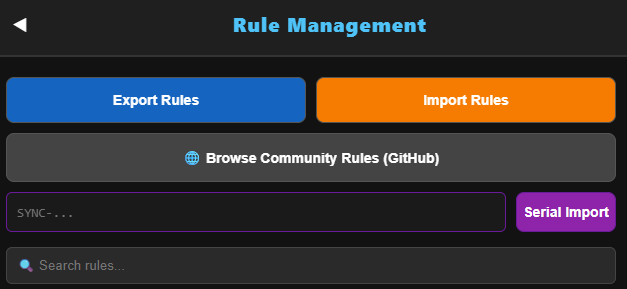
🔍 Search
Use the search box at the top. Type a website name (like example.com) to find it quickly.
📄 Pages
The list shows 10 websites per page. Use the buttons to go to the next or previous page.
📋 Rule Details
Click a website name to see more details:
- Slot Dots: There are 4 training slots (Mod 1 ~ Mod 4). A red dot ● means a rule is saved here. A gray dot ○ means it is empty.
- Rule Description: Explains how the rule works (like "Last segment of URL path").
- Raw JSON: Click to see the code data.
- SYNC Serial Number: Every rule has a special serial number you can share.
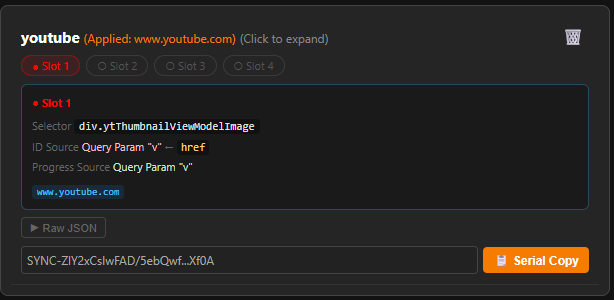
📤 Share Rules (Copy Serial)
Click the orange "📋 Share" button on a rule card. The full SYNC-Z... serial number will copy to your clipboard. You can paste it to share with friends!
💡 Full Serial Number
The dashboard only shows part of the serial number to save space. If you hover your mouse over it, you will see the full number. The Share button always copies the full number.
🗑️ Delete Rules
Click the trash can icon 🗑️ to delete a rule. You must click confirm to delete it.
⚠️ Cannot be undone
If you delete a rule, you cannot get it back. Use "Share" to copy the serial number as a backup before you delete it!
📥 Import Rules
Method 1: Paste Serial Number Find the serial input box. Paste the SYNC-Z... serial number. Click the "Import" button.
Method 2: Import JSON File Click the "Import File" button. Choose a VTrain_Rules_XXXX-XX-XX.json file. The system will add these rules.
📌 Community Rules Library
Do you not want to train websites yourself? Visit the Community Rules Library. Copy a rule from there and import it!
7. Bookmark Vault Access
👑 Pro Feature
The Bookmark Vault is a V-Train Pro feature.
Click the "📚 Bookmark Vault" button. A beautiful full-screen bookmark manager will open in a new tab.
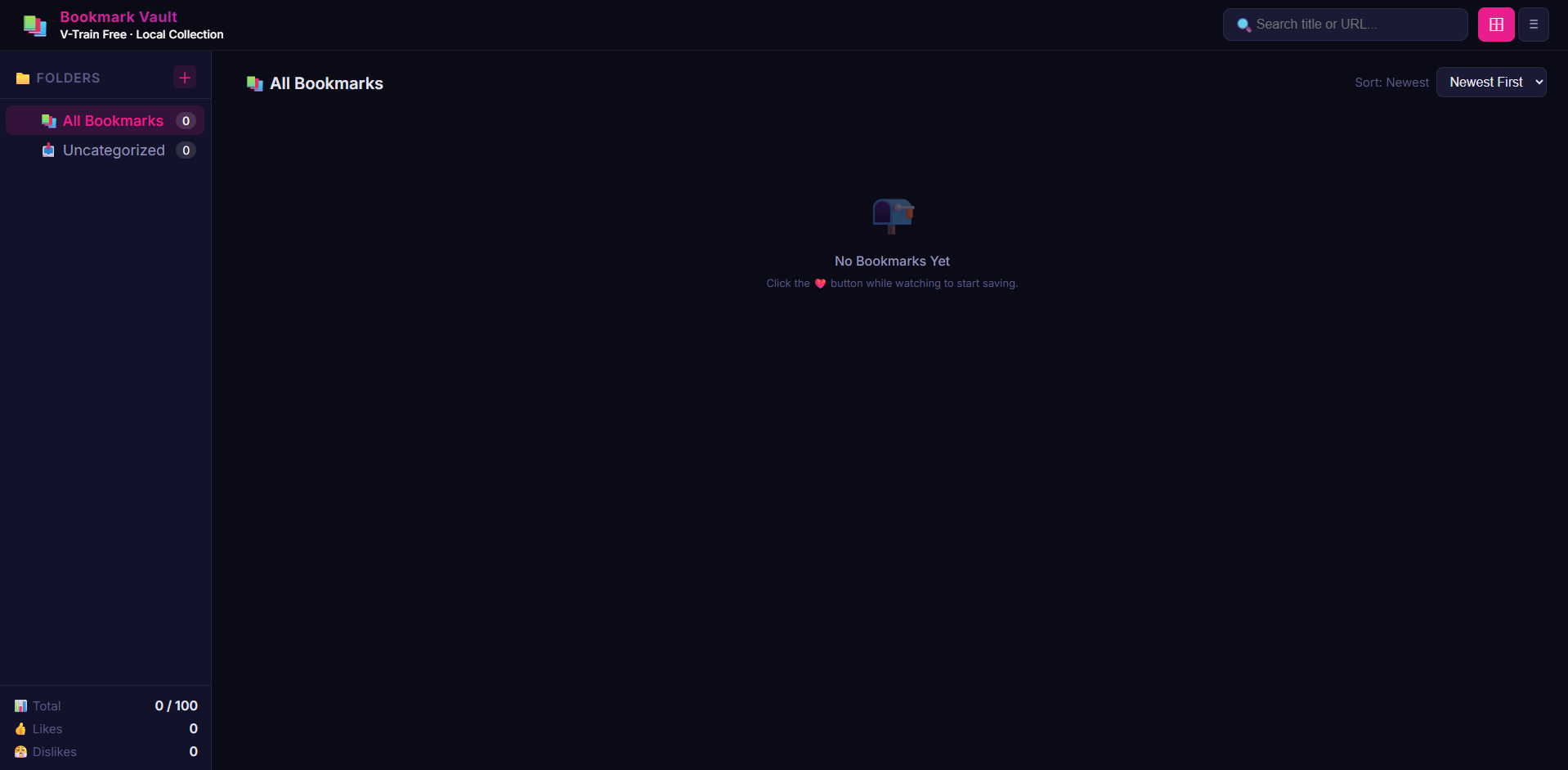
Bookmark Vault features:
- Folders: Create many folders. Right-click to rename or delete.
- Bookmark Cards: Each video has a cover picture, title, and link.
- Quick Jump: Click a card to open the video in a new tab.
- Custom Covers: Take pictures of the video to use as covers.
To learn more, read the Bookmark Vault Guide.
8. Backup & Restore
⚠️ Important! Backup your data!
V-Train stores all data only on your computer. We have no servers. If you remove the extension or reinstall your browser, your data is gone forever!
📥 Export Backup
Click the "Export Full Backup" button. The Backup Center will open. Choose what to backup:
- ✅ Core Data: History, settings, rules, folders.
- 🖼️ Images: Custom cover pictures.
The system will create a backup file and download it.
📤 Import (Restore)
Click the "Import Full Backup" button. The Restore Center will open. Drag and drop your downloaded backup file into the page. Your data will be restored.
To learn more, read the Backup Guide.
9. Pro Upgrade
At the bottom of the dashboard is the "⚡ Unlock V-Train Pro" button.
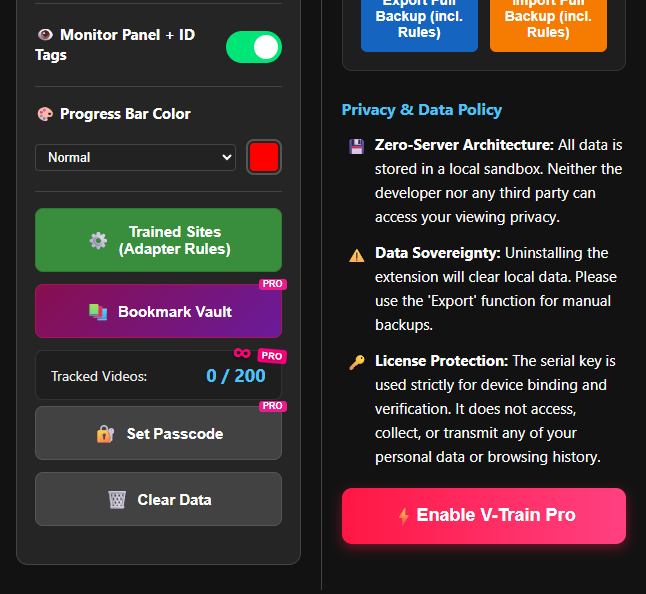
How to upgrade?
- Click the "⚡ Unlock V-Train Pro" button.
- Click "Go to Purchase". A new tab will open for payment ($4.99 USD, one-time payment).
- After payment, you get a License Key (like
XXXXXXXX-XXXXXXXX-XXXXXXXX-XXXXXXXX). - Go back to the dashboard. Click the upgrade button again. Paste your License Key and click confirm.
- Success! The button will turn gold 👑 and say "Pro Enabled".
Pro Features Overview
| Feature | Free Version | Pro Version |
|---|---|---|
| Viewing History Limit | 200 records | Unlimited |
| Bookmark Vault | ✅ Max 100 videos | ✅ Unlimited |
| Floating Hover Panel | ✅ | ✅ |
| Privacy Passcode | ❌ | ✅ |
Where is my License Key saved?
Your License Key is saved securely on your computer. We do not upload your personal data. You can use the same key on a new computer.
10. Privacy Settings Area
🔒 Setup Passcode
👑 Pro Feature
The passcode lock is a V-Train Pro feature.
Click "🔒 Setup Passcode". Type a password (like 1234).
Now, you must enter this password every time you open the Dashboard. This protects your privacy!
🆘 Forgot your passcode?
On the passcode screen, click "Forgot Passcode?".
- Enter your Pro License Key.
- The passcode will be removed.
- The system will ask if you want to backup your data (we recommend yes).
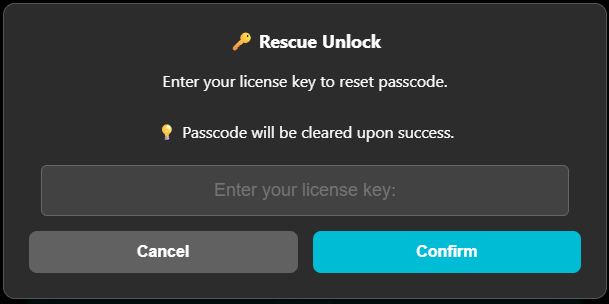
Remove Passcode
To remove the passcode, click "Setup Passcode". Leave the box empty and click confirm.
🗑️ Clear Data
Click the "🗑️ Clear Data" button. This deletes all local viewing history.
It will delete:
- ✅ All video progress records
- ✅ Bookmarks and cover pictures
It will NOT delete:
- ❌ Your Pro license
- ❌ Trained website rules
- ❌ Extension settings (Language, Color, etc.)
⚠️ Cannot be undone!
You cannot get this data back. Please export a backup before you clear data!
Summary
The dashboard has many buttons, but you only need to use these the most:
- 🟢 Monitoring Toggle — Keep it ON to see progress bars.
- 🔓 Authorize Button — Click this on every new website.
- 📋 Rules — Share and import website rules.
- Export Full Backup — Backup often to protect your data.
If you have questions, read the FAQ page!