
❤️ Bookmark Vault & Hover Panel
PRO Feature: Move your mouse over a video to open the control panel. Keep your favorite videos organized!
1. The Hover Panel 🎯
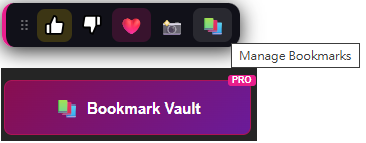
The Hover Panel is a great feature in V-Train PRO. When you are on a video playback page, a small panel appears after you wait a tiny bit (150 milliseconds).
📍 It does not appear on small pictures
The panel only appears on the page where you watch the video. It does not appear when you hover over a small picture in a video list.

The panel has these buttons:
| Button | Function |
|---|---|
| Like 👍 | Rate this video as good |
| Dislike 👎 | Rate this video as bad |
| Bookmark ❤️ | Save the video to a folder |
| Screenshot 📸 | Take a picture to use as the cover |
| Open Vault 📚 | Open your Bookmark Vault |
Move the panel!
You can click and drag the panel to anywhere on the screen. V-Train will remember where you put it.
PRO Feature
The Hover Panel and the Bookmark Vault are V-Train PRO features. If you use the Free version, you must upgrade to use them.
2. Rating Videos (👍 Like / 👎 Dislike) ⭐
What is rating?
Rating lets you quickly mark if you liked a video or not.
How to rate a video?
- Move your mouse over the video to open the panel.
- Click 👍 for good, or click 👎 for bad.
- Your rating is saved immediately.
Seeing Your Ratings
After you rate a video, a small badge will appear on the video's picture:
- 👍 Thumbs up → You liked it
- 👎 Thumbs down → You did not like it
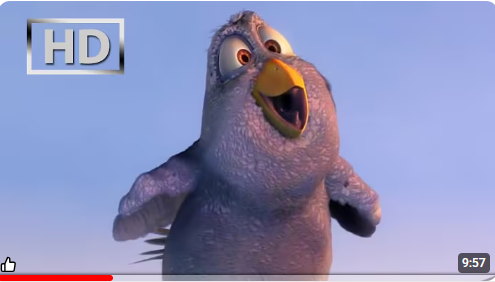
This helps you see what you already watched and liked.
Change your mind?
Click the same button again to remove the rating. Click the other button to change your rating.
3. Save to Bookmark Vault (❤️) 📁
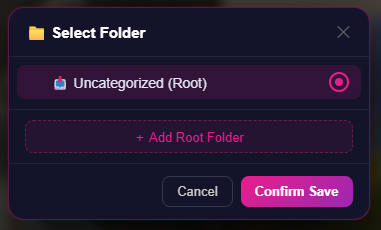
How to save a video
- On a video playback page, click ❤️ on the panel.
- A list of your folders will open.
- Click a folder to save it there.
- Done!
Note
You can only save a video from the playback page.
4. Screenshot Cover Feature (📸) 🖼️
What is a Screenshot Cover?
When you click the 📸 button, V-Train takes a picture of the video. It uses this picture as the cover in your Bookmark Vault.
Why do we need this? Many websites stop showing covers after a few days. Taking a picture saves the cover forever.
Technical Flow of Screenshot
V-Train captures the cover using the following flow:
- Prioritize Canvas/Video Capture: Attempts to take a canvas screenshot directly from the video element on the page.
- Fallback to OG Image: If the first step fails, it tries to fetch the official sharing image from the page's
<meta property="og:image">tag. - Fallback Screenshot via Context Menu: Due to strict cross-origin ad interference or CORS policies on certain sites, the 1-click snapshot might fail and display a red "❌". When this happens, a red tooltip will pop up. Simply follow its instruction: right-click the page and select "📸 V-Train: Force Physical Snapshot". The system will temporarily request the
activeTabpermission to bypass all restrictions and force the screenshot capture. - Compression: The captured image is compressed into a 320px wide WebP format to balance image quality and storage space.
- Save to IndexedDB: The compressed image is securely saved to your browser's local IndexedDB database (
vt_thumbnailsstore).
Where are the pictures saved?
The pictures are saved on your computer only. They are not uploaded to the internet. They will not sync to your other computers.
5. Bookmark Vault Screen 📚
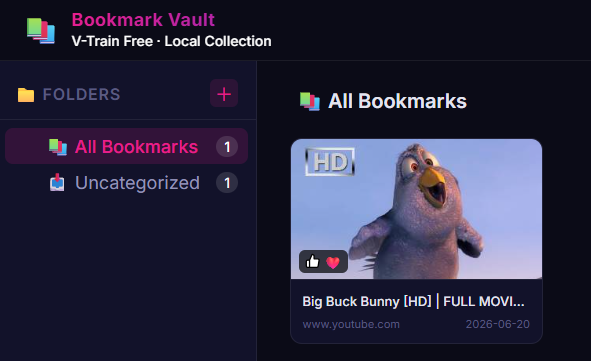
How to open the Bookmark Vault?
- From the Hover Panel: Click the 📚 button.
- From the V-Train Menu: Click the VT icon in Chrome, then click "Bookmark Vault".
What can you do here?
| Feature | Description |
|---|---|
| Grid View | Show large pictures |
| List View | Show small pictures and more text |
| Sort | Sort by newest, oldest, or name |
| Search | Find a video by typing its name |
| Folders | See your folders on the left |
| Pages | Show 12 videos per page |
6. Using Folders 📂
Create a Folder
Click the "New Folder" button on the left. You can create folders inside other folders. For example:
📁 Music
  📁 Pop
  📁 Rock
📁 Tutorials
  📁 Cooking
Manage Folders
Right-click on any folder to:
- ✏️ Rename: Change the folder's name.
- 🗑️ Delete: Delete the folder and all videos inside it.
Be careful!
If you delete a folder, it is gone forever. You cannot get it back.
Move Videos
There are three buttons on each video card:
| Button | Function |
|---|---|
| 🗑️ Delete | Delete this video (cannot get it back) |
| 📂 Move to | Move this video to a different folder |
| ✏️ Rename | Change the video's name |
7. Find Your Videos 🔍
Sort Videos
Click the sort menu in the top right corner:
- Newest: Show the newest videos first.
- Oldest: Show the oldest videos first.
- Title A→Z: Show videos in alphabetical order.
Search for a Video
Type a word in the search box at the top. The system will find videos with that word in the title. It searches the current folder and all folders inside it.
8. Anti-Hotlinking Protection 🔒
What is this?
Many websites block you from showing their pictures on other pages. This causes broken pictures in your Bookmark Vault.
How V-Train fixes it
V-Train has a special tool that tricks those websites. It makes them think you are on their own page. This allows the pictures to load normally.
🛡️ Is this safe?
Yes, it is 100% safe. It only works for pictures and does not share your private data.
9. Live Sync Across Tabs 🔄
If you have many Bookmark Vault pages open, they will all update at the same time!
If you add a video in Tab A, it will appear in Tab B immediately. You do not need to refresh the page.
Note
This only works on the same computer. It does not sync to your phone or another computer.
10. Free Version: Bookmarks are Never Deleted 🛡️
V-Train automatically deletes very old video records to save space.
But V-Train will NEVER delete a video if you put it in the Bookmark Vault.
Even if you use the Free version, your saved videos are safe forever.
Tip: How to use the Bookmark Vault well 🗂️
- Use the panel to rate: If you like a video, click 👍.
- Use ❤️ to save: Put the video in a folder so you can find it later.
- Use 📸 to take a picture: If you think the cover picture might disappear later, take a picture of it.
- Clean your folders: Move videos to the correct folders.
- Search: If you cannot find a video, use the search box!